How Do I Use Cloud Tuning?
Sim Commander Software Documentation
To utilize cloud tuning, simply launch a cloud-designated profile from the Sim Commander main screen. A cloud-designated profile will have the cloud icon in the top-right.
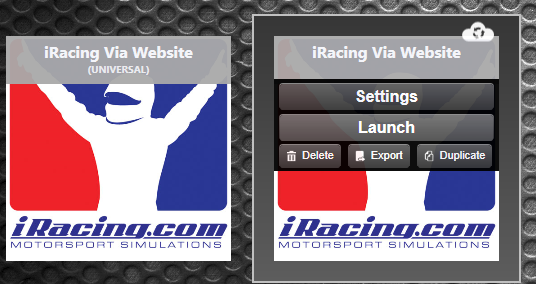
When you get on track with a cloud designated profile, Sim Commander will announce that it has modified your profile for the game, car and track you are in. A full match is best, indicating that we have full data for the game/car/track. A partial match is also possible, indicating that we have good data for the vehicle, but not at the track you are on. A no match status indicates that we've collected insufficient data for the game/car/track you are using in the last 6 years. This is rare and usually on occurs for brand new vehicles and tracks.
If you don't have any cloud-designated profiles, please follow this tutorial, which will help you to auto-discover any games you have installed and automatically create default profiles for them: https://www.simxperience.com/slides/slide/how-to-auto-discover-games-profiles-47?search_category=44
Speech Volume Control
You can control the volume level of Sim Commander cloud tuning announcement. To do so:
Click the settings button from the Sim Commander main screen

Expand the Speech Settings section and set your desired volume level
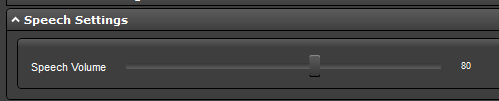
NOTE: The volume can only be reduced as low as 50% because the speech mechanism conveys critical information and should never be fully muted.