GS-5 Driver Installation
GS-5 G-Seat Documentation
SimXperience distributes drivers via Microsoft Windows Updates. When you connect the USB cable for a SimXperience device, Windows should automatically install our driver for you and no further effort is required on your part.
However, there are two known scenarios in which this automated process does not occur:
#1 - You Are On Certain Flavors Of Windows 10 That Force Our Driver Into The Optional Section
It seems Microsoft isn't automatically installing the drivers in some flavors of Windows 10, but they still provide you a way to do so.
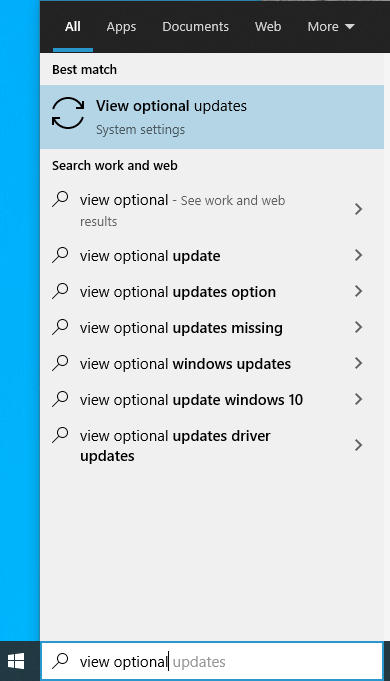
Click 'Start' and type 'View Optional Updates'
Expand the section named 'Driver updates'
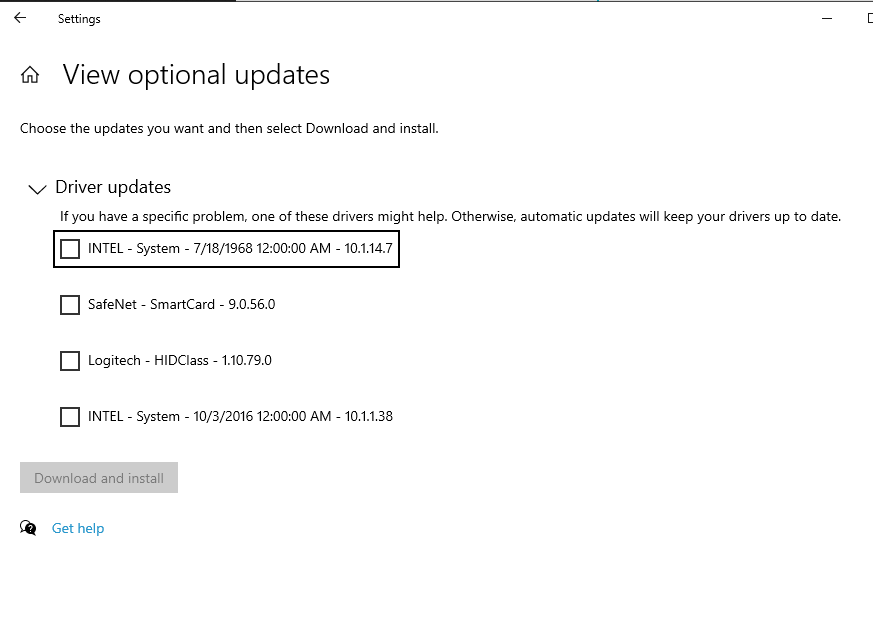
Select all SimXperience drivers and all FTDI drivers, then click the 'Download and install' button
REPEAT THIS PROCESS TO GET EVEN MORE SIMXPERIENCE DRIVERS. DO THIS UNTIL NO SIMXPERIENCE DRIVERS ARE OFFERED BY MICROSOFT.
#2 - Automatic Driver Installation Is Disabled On Your Windows 10 PC
Click the Windows Start Button
Type 'Change Device Installation Settings' into the Start Menu Search Bar
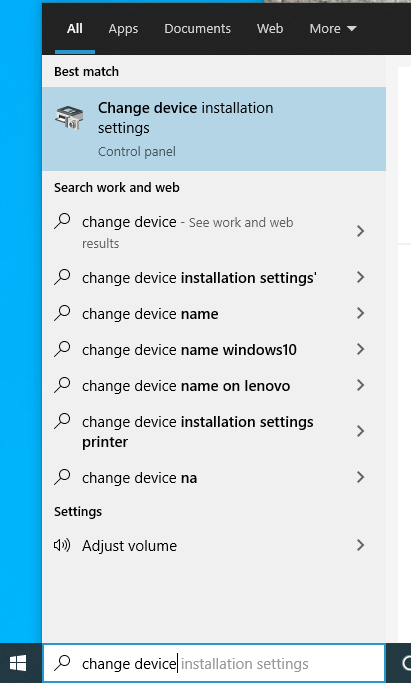
Click to Launch the Change Device Installation Settings app from the Start Menu
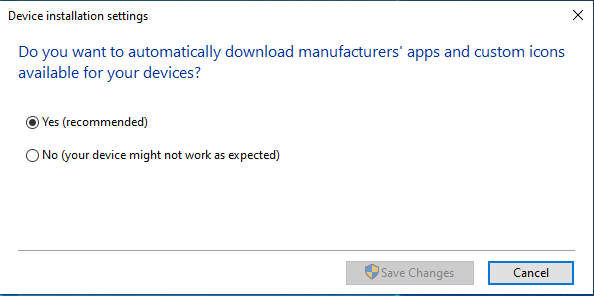
Select 'Yes' if not already selected and 'Save Changes'